Furniture design plugin for workshops

3D furniture design in SketchUp.
From drawing to workshop.

Build furniture in 3D, from kitchen cabinets to wardrobes. Add hardware, reuse your cabinets, and prepare quotes, cutting layouts and workshop drawings from the same SketchUp model.

Windows and Mac · SketchUp 2023 or newer

A project, from start to finish37 seconds · choose a chapter
A real project, from the room to the client quote and assembly overview.Screenshot montage · no sound · Romanian captions

Try it in 3D

Cabinets built with the plugin, exactly as it makes them. Rotate them, zoom in and pick the drawer system.

Drag = rotate · wheel or two fingers = zoom · right click = pan

Cabinet library

A cabinet prepared for one kitchen can be the starting point for the next job. Save it from the editor with a thumbnail and organise it by room. Favourites and recently used cabinets help you return to the designs you work with often.

When placing it in a new project, choose the width, height, depth and material. Find the material by code or name, then position the cabinet beside the others. Fronts and internal parts adapt to the new dimensions within the limits set when saving.

The placed cabinet is a copy: later changes to the library do not alter projects already drawn. You can also export and import cabinets in a library file to move them between computers or share them with a colleague. The hardware’s 3D models are not included in that file.
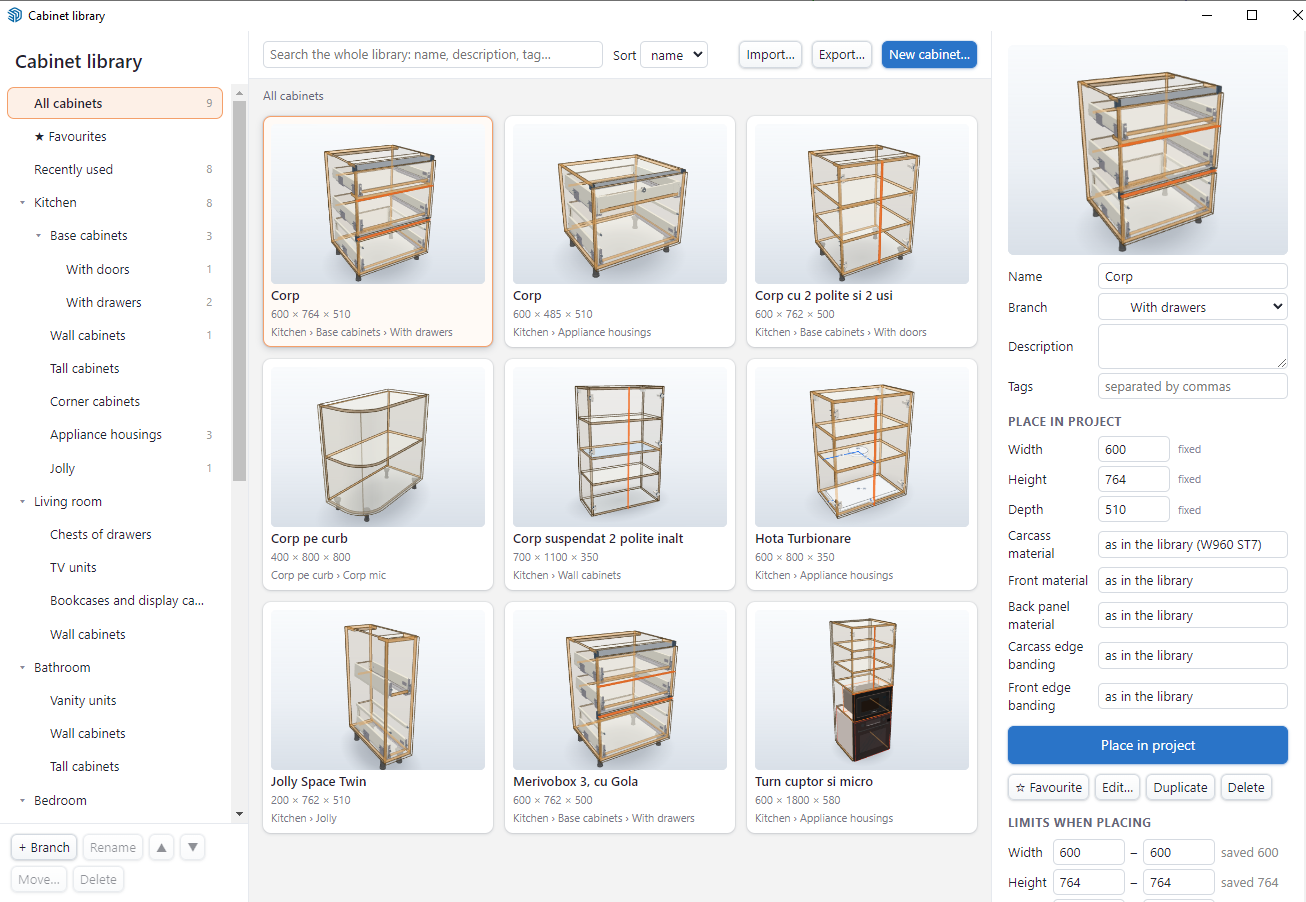
Cabinet library with thumbnails, categories and options for placing cabinets in the project
See how a cabinet is prepared for the library
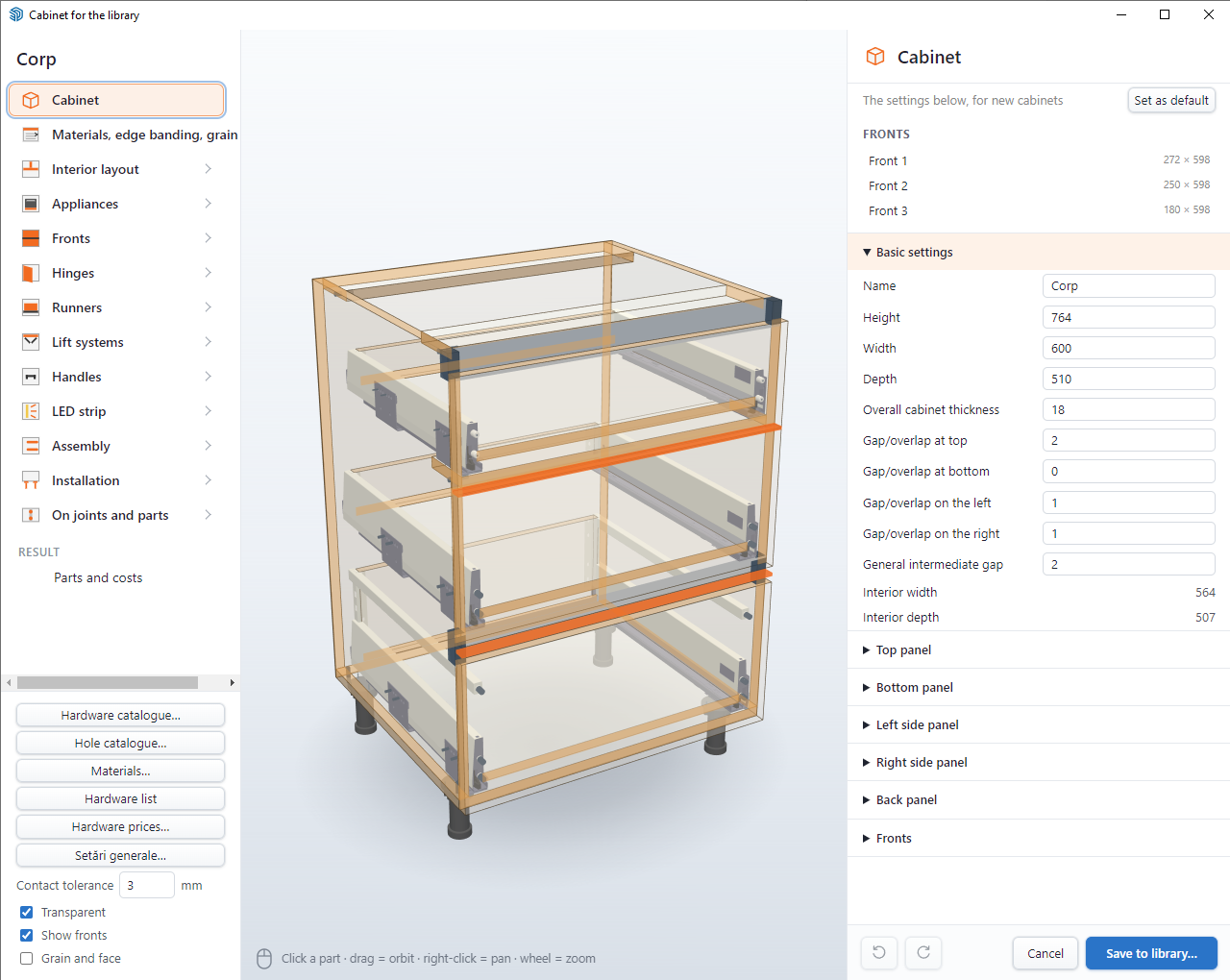
Editor showing a three-drawer cabinet, visible hardware and dimensions before saving to the library

Curved cabinets and fronts

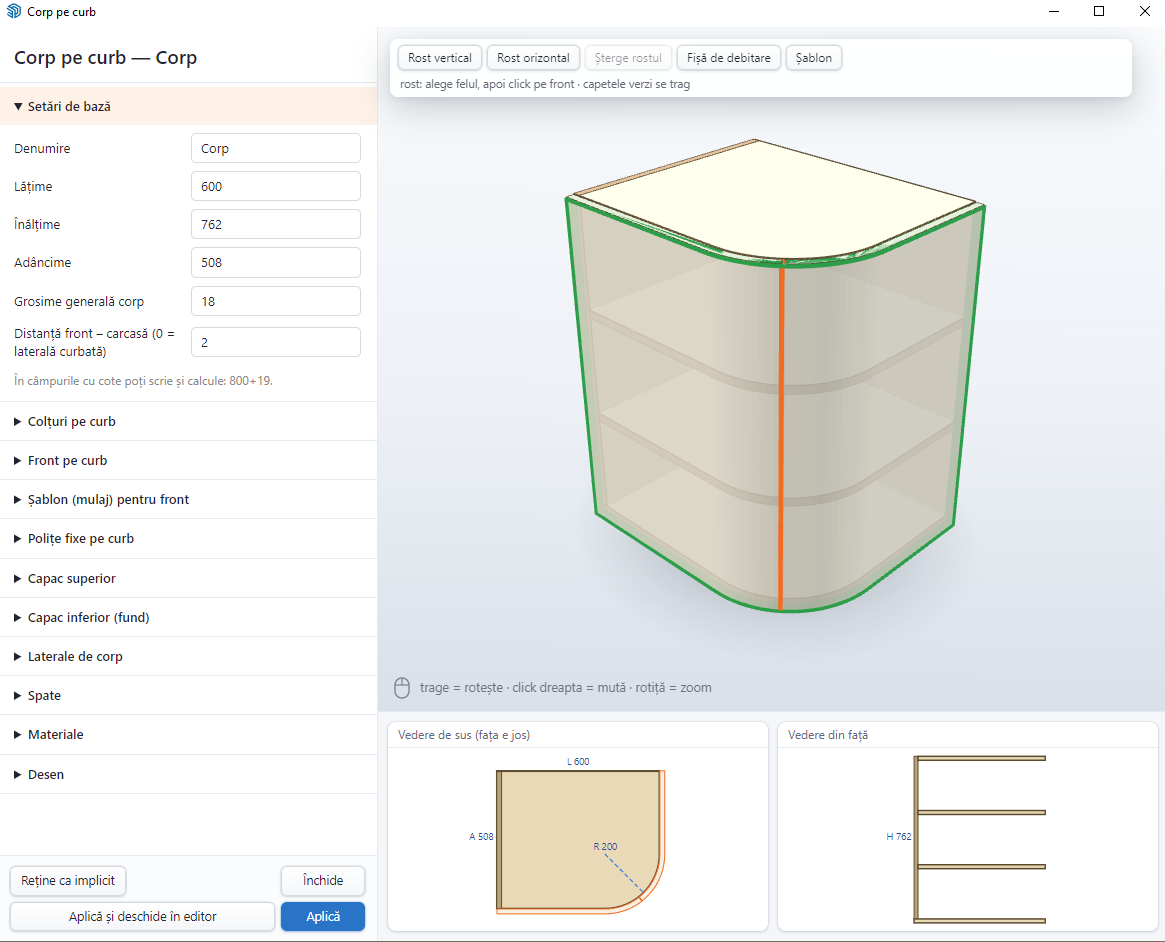
For a rounded end to a furniture run, work with radiused or chamfered corners on bottom panels, tops and shelves. A curved front can follow a straight section, a radius and another straight section, either overlaid on the cabinet or inset between the bottom and top.

Review the shape in 3D as you work. Move front joints and adjust the ends with the mouse, checking how they meet the rest of the cabinet. Recess a side panel to the arc or prepare fixed curved cladding.

For the workshop, the module prepares a front sheet with a 3D image and dimensions, plus a forming template drawn in SketchUp with an assembly sheet. The curved front has separate documentation and is not included in cutting optimisation.

The module is in testing. Hinge placement on the curved front is not yet available.

Curved cabinet editor with the 3D model and dimensioned top and front views

Showroom and quoting

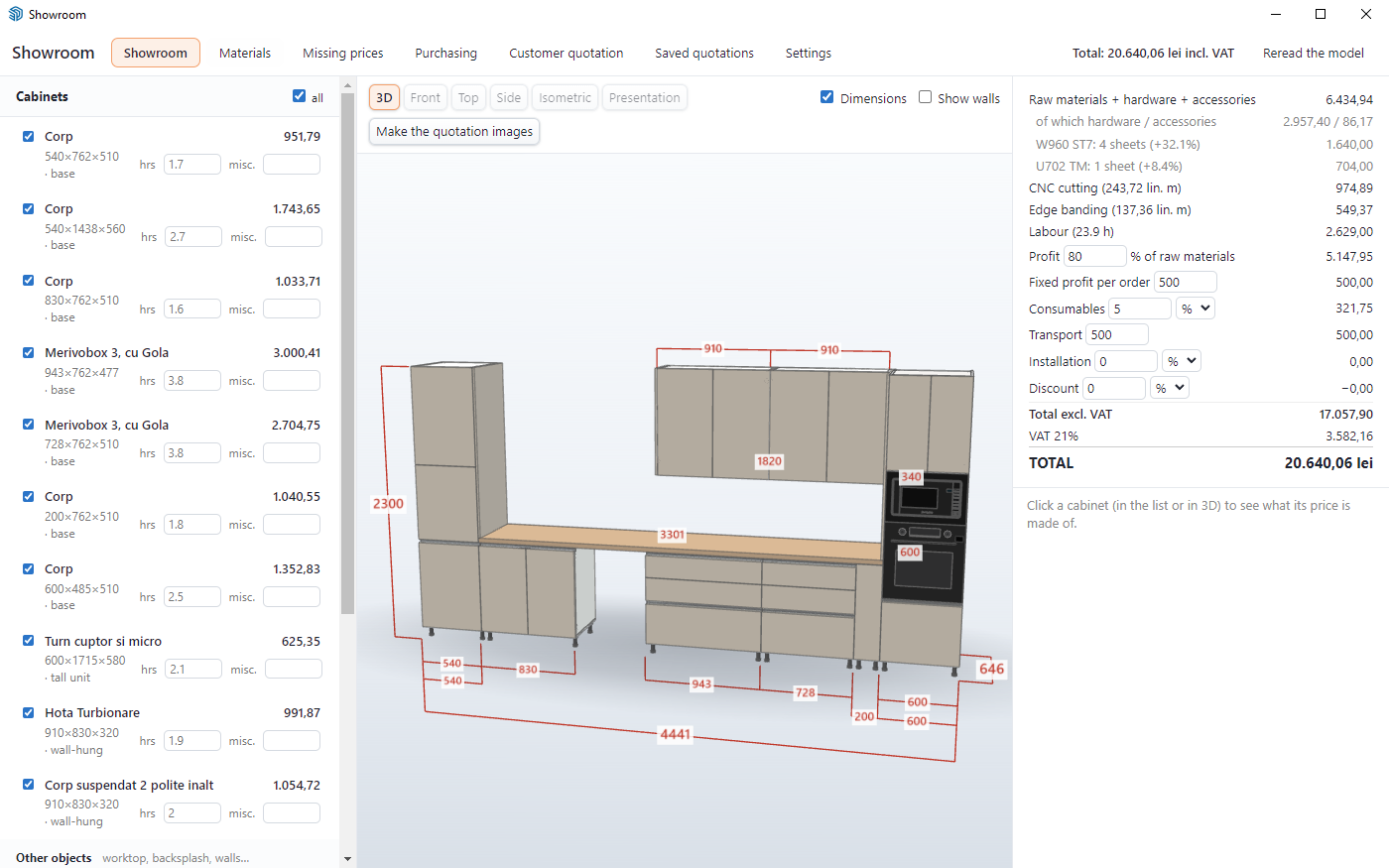
Prepare the price of the whole job from the cabinets drawn in SketchUp. The Showroom reads the model and displays it in 3D with dimensions, while each cabinet’s contribution to the total appears beside it. Select a cabinet in the list or directly in the view to inspect its cost breakdown.

The calculation accounts for materials, waste, edge banding, hardware, cutting, edge banding work and labour. Add profit, transport and installation, then apply a discount and the configured VAT. If you change materials across the project, compare the effect on the price before preparing the quote.

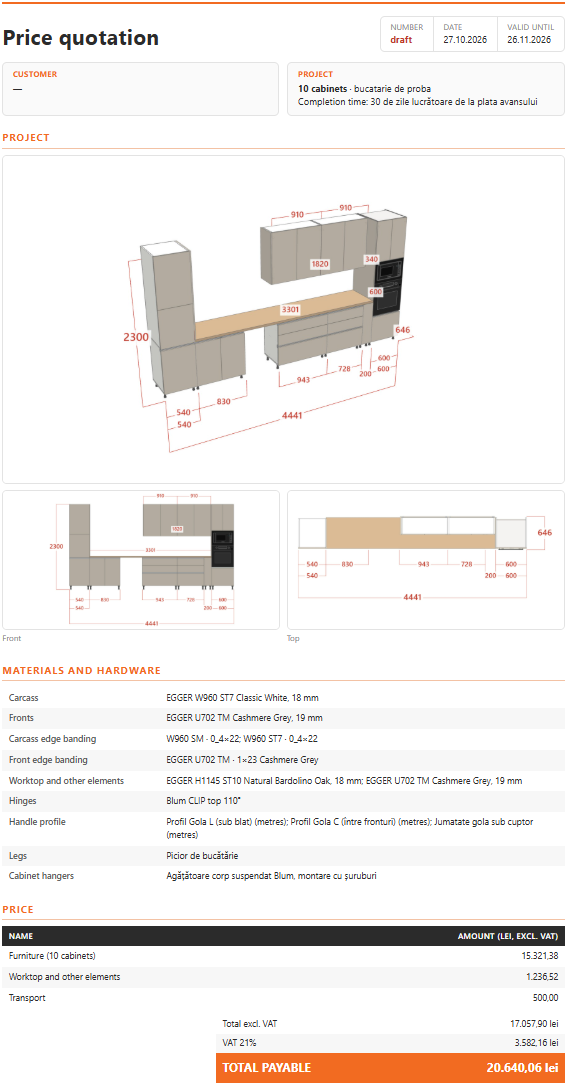
Prepare a customer quote with an overall image, project views, materials, hardware and the job total. Labour hours, profit and unit prices stay in the internal calculation. Save the quote as a PDF from the print window; quotes saved in the plugin reopen with their prices preserved.

The images show a demonstration project. The amounts are an example furniture quotation, not the price of the plugin.

Showroom displaying a kitchen project, individual cabinet costs and the quotation total
See the customer quotation
Customer quotation with kitchen views, materials, hardware and total price

From 3D furniture design to the workshop.

  1. BuildStart with the room, then build the cabinets. See dimensions, materials and hardware in 3D.
  2. Place it in SketchUpThe cabinets stay in your model. Reopen them, make changes and keep working in SketchUp.
  3. QuoteUse the cabinets in your model to prepare the price and the client quote.
  4. BuildPrepare cutting layouts, labels and dimensioned drilling sheets. For CNC or manual work.

Plan a furniture project for the workshop

Two practical workflows for workshops designing furniture in SketchUp: from measuring the room to preparing the parts for production.

Questions

Is this a standalone furniture design program?

It is a plugin used inside SketchUp, not a standalone program. Furniture cabinets stay in the SketchUp model alongside the room and the rest of the project.

Can I design furniture directly on this website?

On this website you can explore a few fixed cabinets in 3D. To design furniture with your own dimensions, materials and hardware, use the plugin installed in SketchUp.

Which SketchUp version do I need?

SketchUp 2023 or newer, on Windows or Mac.

Can I buy it now?

Not yet. The first testers get it before launch. Write to us if you want to be one of them; prices will be announced at launch.

Do I need a CNC?

No. The workshop sheets have every hole dimensioned from the front edge, and the optimiser also works for panel saws and beam saws.

How do I get updates?

From the plugin: it tells you when a new version is out. Your catalog, prices and cabinets live in your own data folder and are kept on update.

Do I need an internet connection?

Only now and then, to check the licence. The plugin keeps working for 48 hours offline, and its windows need no connection.

Be there when Cabnevo launches.

The plugin is in development. Leave your email to hear when it launches. Joining is free and does not commit you to a purchase.

Or write directly to contact@cabnevo.ro

Only for the plugin launch. No account or purchase required.

Pop Adrian manages this list to send the Cabnevo launch announcement, based on your consent. How we use your email.