Furniture design in SketchUp
Kitchen Cabinet Design in SketchUp: A Workshop Workflow
A kitchen design must fit the room and be possible to build. A 3D model helps you review the layout, but a workshop also needs parts, materials, hardware and checked dimensions. This workflow follows the Cabnevo plugin inside SketchUp.
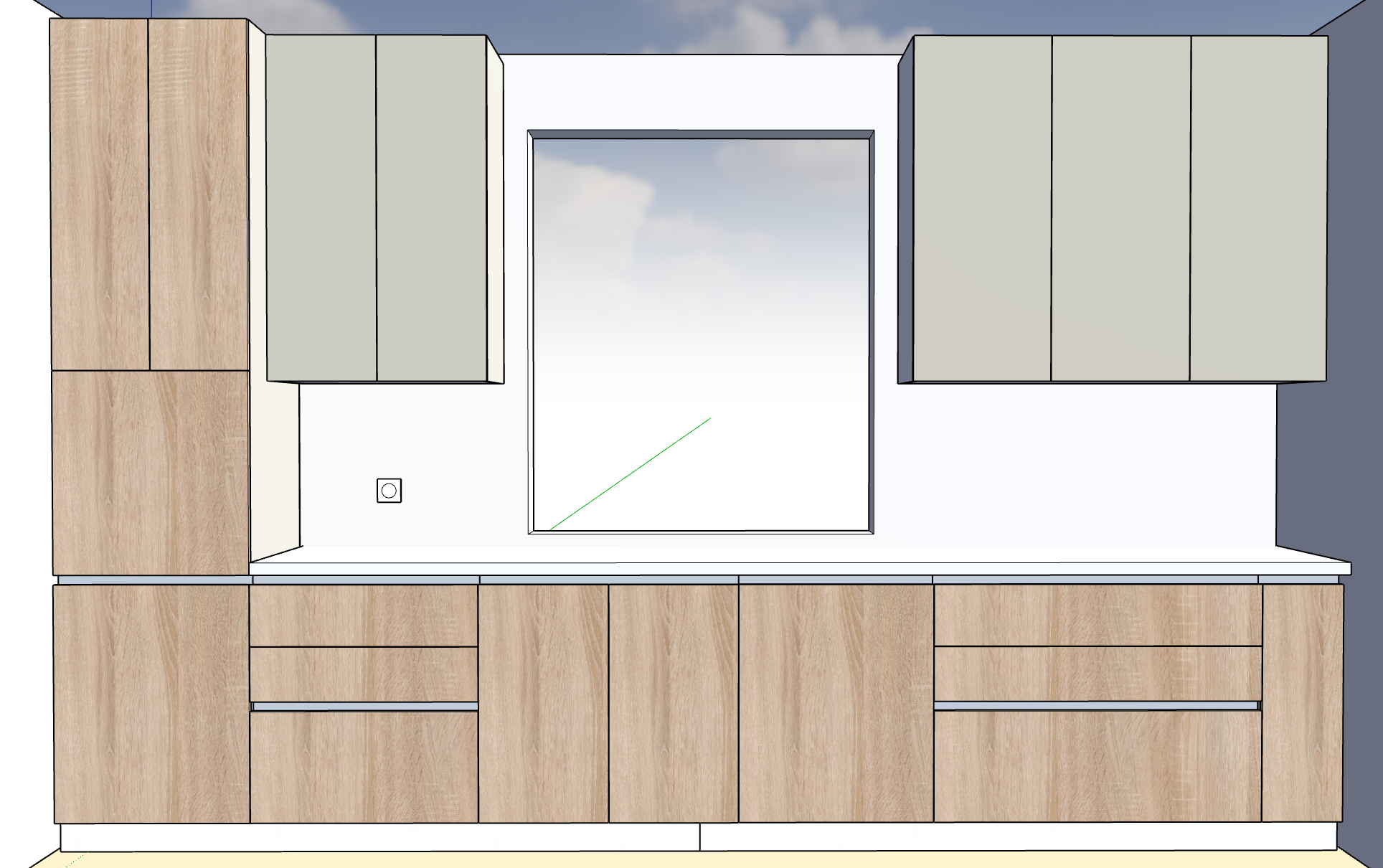
1. Start with the measured room
Record wall lengths, ceiling height, doors and windows, then power outlets, water connections and other services. Include columns and beams that reduce the available space. A rectangle with the overall room dimensions does not capture every obstacle you may encounter during installation.
The Room module lets you construct the room and position openings and services. Use the plan and wall views to compare the model with your site measurements. For walls that are not square or vertical, determine installation allowances and methods separately.
2. Build the furniture cabinets
Set the width, height and depth of each cabinet, together with material thickness and construction method. In the plugin editor, choose materials, edge banding and fronts; review the parts in 3D before applying the cabinet to the SketchUp model.
For a kitchen, consider base units, wall units and appliance spaces together. The outside dimensions of a cabinet do not confirm whether a particular oven, extractor or dishwasher can be installed. Compare the usable space with the actual appliance specification.
3. Fit drawers and hardware to the available space
A drawer is not selected by front width alone. Available depth, back-panel position, clearances and interference with hinges or other parts also matter. The plugin supports systems such as MOVENTO, TANDEM and MERIVOBOX, with their drilling and related information.
Inspect the cabinet with the fronts hidden or transparent. Check space for internal drawers, spacers and mechanisms. Verify against the documentation for the exact hardware being ordered; the website demo uses simplified hardware geometry.
4. Reuse cabinets and review the complete layout
Save a cabinet to the library when you expect to use it again. When placing it in another project, change its dimensions and materials without redrawing each part. Recheck the hardware and usable space after changing dimensions.
After positioning the cabinets, prepare the worktop and plinth and check front opening near walls, corners and appliances. For adjacent fronts, grain continuity must be considered in the cutting layout as well as in the 3D image.
5. Check the design before quoting and production
- Compare final dimensions with the measured room and allow space for installation.
- Confirm materials, thicknesses, edge banding and grain direction.
- Check clearances, front opening and access to services.
- Compare the hardware list with the selected mechanisms and their technical specifications.
- Review the quote, part lists and workshop drawings after the latest model changes.
In Cabnevo, quoting, cutting optimisation and workshop drawings start from the model. Check the output after each relevant change before sending a quote or beginning machining.
This workflow describes the plugin installed in SketchUp. The browser demo displays fixed cabinets and is not a kitchen configurator. The product is pre-launch; prices and commercial conditions have not yet been published.